HEIC to JPG
Convert iPhone HEIC images to JPG.
01 Overview
About HEIC to JPG
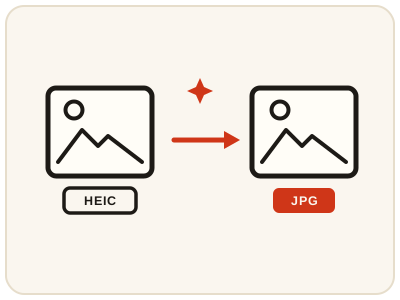
HEIC to JPG converts iPhone HEIC photos into ordinary JPG files that open on Windows computers, websites and older apps that refuse HEIC. The conversion runs in your browser, so you can convert photos you have already transferred to any computer without installing Apple software.
02 Workflow
How to use HEIC to JPG
- 1Choose a HEIC photoPick the .heic photo from your device — for example one transferred from an iPhone to a Windows PC.
- 2Start the conversionThe JPG version is prepared locally in your browser; the photo is never uploaded.
- 3Preview the JPGConfirm the photo looks the way it did on your iPhone.
- 4Download and shareSave the JPG and share, upload or print it anywhere the HEIC file was not accepted. Keep the HEIC original as your master copy.
03 Good to know
Frequently Asked Questions
What is HEIC, and why does my iPhone use it?
HEIC is a modern photo format Apple uses because it stores high-quality pictures in smaller files than JPG. The downside is compatibility: many non-Apple devices, websites and apps still do not support it.
Will converting HEIC to JPG reduce photo quality?
For everyday sharing, viewing and printing, a converted JPG looks just as good as the original. JPG files are larger than HEIC files, but the visible difference at normal sizes is negligible.
Can I convert HEIC photos on a Windows computer?
Yes. The tool works in a browser on Windows, Mac or a phone, so you can convert iPhone photos on any computer without installing Apple software.
Why won't my iPhone photos open on my Windows PC?
Windows and many older programs do not support Apple's HEIC format, so the photos show as unopenable files. Converting them to JPG here gives you copies that open in every Windows program.
An application or job form rejected my HEIC photo — what should I do?
Convert the photo to JPG and upload the JPG instead. Application portals, employers and government forms overwhelmingly ask for JPG, and the converted copy keeps the photo looking the same.
Can I convert HEIC photos on an Android phone?
Yes. The converter runs in any modern browser, including on Android, so iPhone photos sent to you can be converted and viewed or shared from an Android phone.
How do I stop my iPhone saving photos as HEIC?
On the iPhone, open Settings, then Camera, then Formats, and choose Most Compatible — new photos are then saved as JPG instead of HEIC. Photos already saved as HEIC still need converting, which is what this page is for.