Delete PDF Pages
Remove selected pages from a PDF.
01 Overview
About Delete PDF Pages
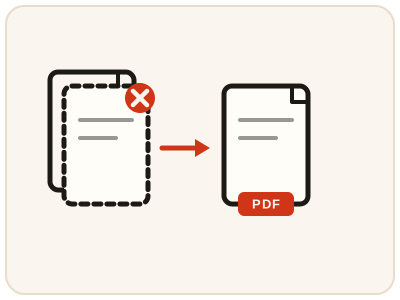
Delete PDF Pages removes the pages you list from a document and rebuilds a clean PDF with the rest. People use it to strip blank pages out of scans, remove a cover sheet, or cut pages they do not want to pass on before sharing a document. It runs in your browser, so the file is never uploaded.
02 Workflow
How to use Delete PDF Pages
- 1Upload your PDFThe tool reads the page count automatically.
- 2List pages to removeUse comma-separated numbers and ranges, e.g. "2, 4-6".
- 3Delete & downloadGet a new PDF without the pages you removed.
03 Good to know
Frequently Asked Questions
Is Delete PDF Pages free to use?
Yes, Delete PDF Pages is completely free without signup or added branding. File-size, page-count and request limits apply.
Can I delete every page?
No, at least one page must remain in the document.
Does this work on mobile devices?
Yes, it works on phones, tablets, and desktop browsers.
How do I remove specific pages from a PDF for free?
Upload the PDF, type the page numbers you want gone — single numbers or ranges such as "2, 4-6" — then download the new PDF built from the remaining pages. No signup is needed, and the work happens in your browser.
Can I delete several pages or a whole range at once?
Yes. The page list accepts comma-separated numbers and ranges together, for example "2, 4-6, 9" removes pages 2, 4, 5, 6 and 9 in one pass. At least one page must remain in the document.
Does deleting pages change my original PDF file?
No. You download a new PDF that leaves the listed pages out; the original file on your device is untouched, and the pages that remain keep their original order and content.
How do I delete blank pages from a scanned PDF?
Upload the scan, note the numbers of the blank pages, and list them in the pages box — for example "2, 4-6" removes page 2 and pages 4 to 6 at once. The tool has no automatic blank-page detection, so a quick scroll through the document first is worth it.