Split PDF
Split a PDF by ranges, pages, or intervals.
01 Overview
About Split PDF
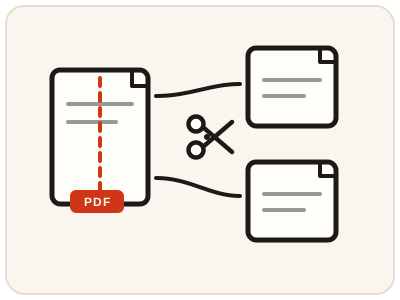
Split PDF extracts specific pages into a new document, or breaks a file into equal-sized parts delivered as a ZIP. Splitting is how you pull one chapter out of an e-book, send only the signed page of a contract, separate a batch scan back into individual documents, or break a large file into parts small enough to email.
02 Workflow
How to use Split PDF
- 1Upload one PDFThe tool reads the page count automatically.
- 2Choose a split modeExtract a page range into one file, or split every N pages into a ZIP.
- 3Download the resultGet a single PDF, or a ZIP of PDF parts.
03 Good to know
Frequently Asked Questions
Is Split PDF free to use?
Yes, Split PDF is completely free without signup or added branding. File-size, page-count and request limits apply.
How do I write a page range?
Use comma-separated numbers and ranges, e.g. "1-3, 5", matching the page numbers shown in your viewer.
Does this work on mobile devices?
Yes, it works on phones, tablets, and desktop browsers.
How do I extract only the pages I need from a PDF?
Choose the extract mode and enter the pages to keep — for example "1-3, 5" — and the tool builds a single new PDF containing just those pages.
Can I separate a PDF into individual one-page files?
Yes. Use the split-every-N-pages mode with N set to 1, and the tool delivers a ZIP of one-page PDFs.
Can I split a password-protected PDF?
Not while it is protected — the pages cannot be read until the open password is removed. Unlock the file first with Unlock PDF, then split the unlocked copy.
Does splitting a PDF reduce the quality of the pages?
No. Splitting copies pages into the new files exactly as they are — text stays selectable and images keep their resolution. Nothing is re-rendered or compressed.